
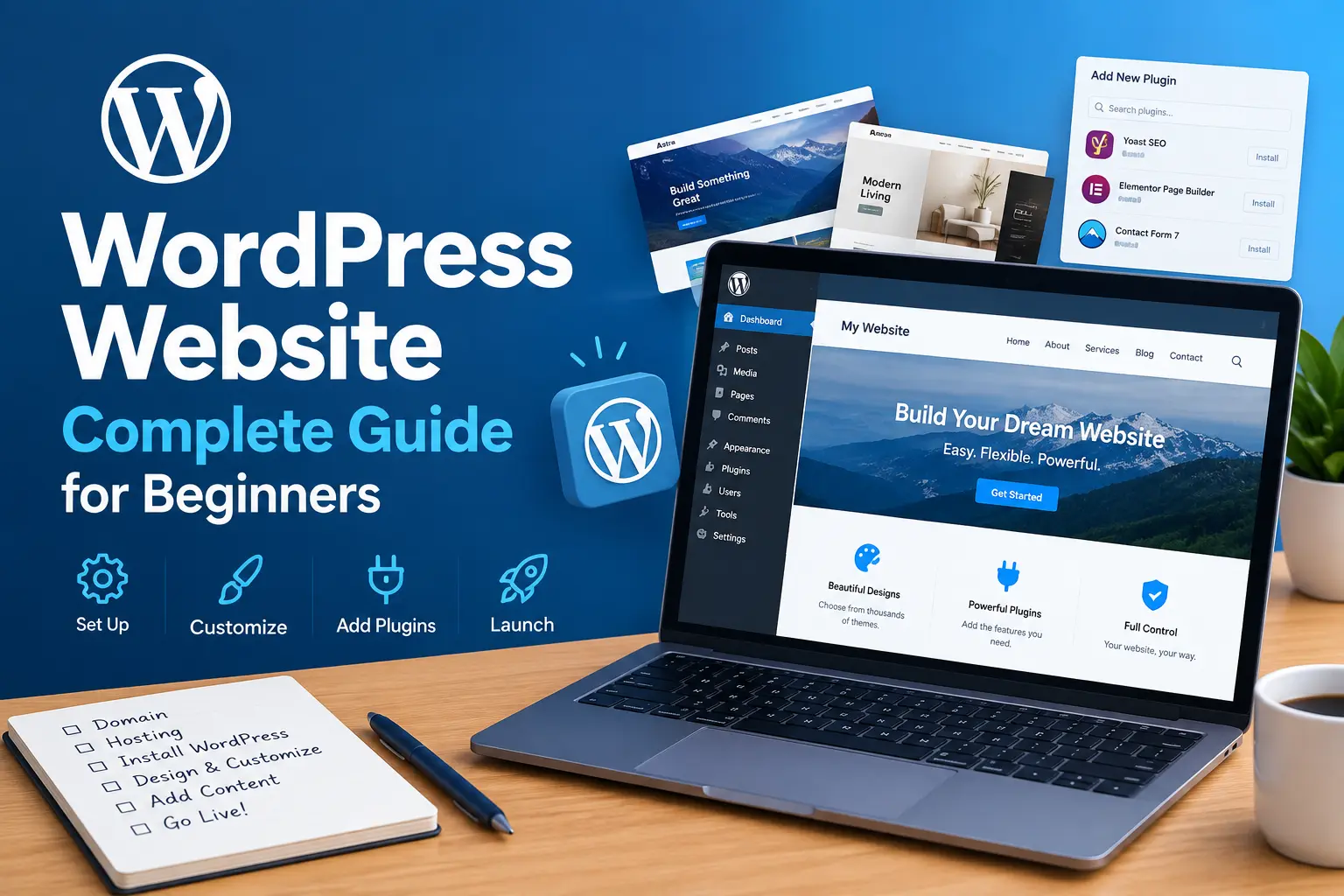
If you have ever typed “how do I get a website online” into Google, chances are the answer led you straight back to WordPress. A WordPress website now powers a huge share of the internet, from personal blogs to full online stores, and for good reason: the platform is flexible, affordable, and beginner-friendly once you understand the basics. This guide walks you through everything you need to know about building, optimizing, and maintaining a WordPress website in 2026, step by step, without the jargon.
Whether you are a small business owner trying to get found on Google, a freelancer building a portfolio, or a hobbyist starting a blog, a well-built WordPress website gives you full control over your content, design, and growth. Let’s break down exactly what that means and how to do it right, from the very first decision all the way through to long-term upkeep.
What Is a WordPress Website?
A WordPress website is any site built using WordPress, an open-source content management system (CMS) that lets you create and manage content without writing code from scratch. Instead of hiring a developer to hand-build every page, you use themes for design and plugins for functionality, then fill in your own content through a simple dashboard.
WordPress started out as blogging software back in 2003, but it has since grown into a full platform capable of running business sites, online stores, portfolios, membership communities, and more. That evolution is exactly why so many beginners and professionals both land on the same tool: it scales with you.
There are two flavors worth knowing before you start building:
- WordPress.org — the self-hosted version where you install the WordPress software on your own hosting account. This gives you full ownership and control over the site you build.
- WordPress.com — a hosted service where WordPress handles the technical side for you, but with more limitations on customization at the free and lower-tier plans.
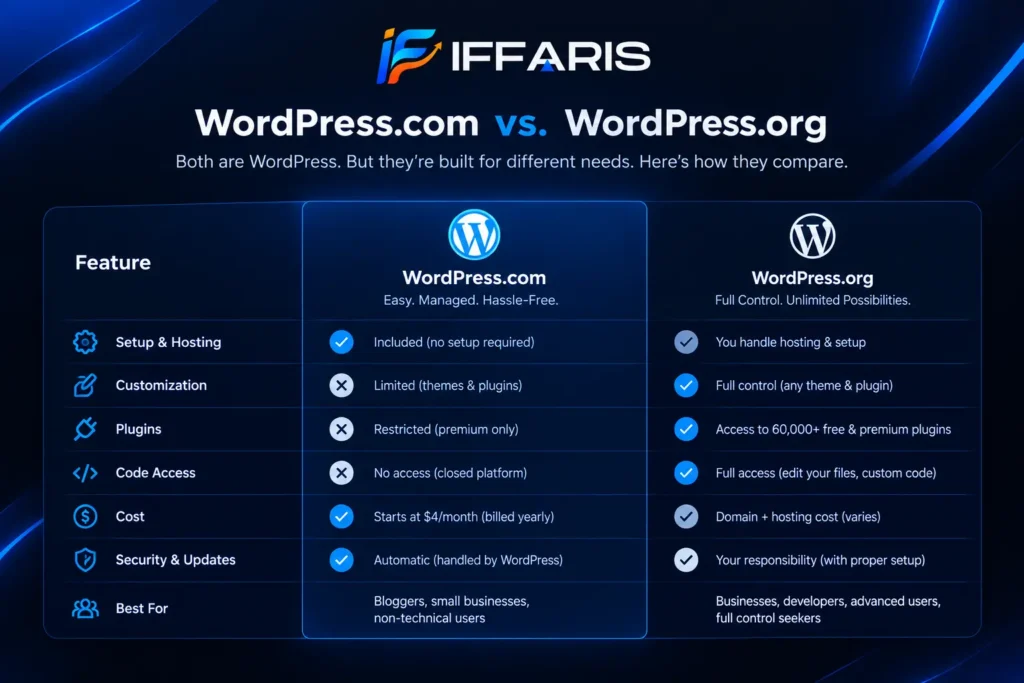
Most businesses and serious bloggers choose WordPress.org because a self-hosted site isn’t restricted by someone else’s platform rules, and you can install any theme or plugin you want on your WordPress website.
Why Build a WordPress Website in 2026?
There are dozens of website builders out there, so why does WordPress still dominate? A few reasons stand out:
- Flexibility — A WordPress website can be a blog, portfolio, online store, membership site, or business site. The same core software adapts to almost any use case, which means you’re rarely locked into one type of project.
- Ownership — When you run a self-hosted WordPress website, you own your content and data outright. There’s no risk of a third-party platform shutting down and taking your site with it, unlike some closed website builders.
- SEO-friendliness — A properly configured WordPress website is naturally easy for search engines to crawl and index, especially with the right plugins and structure in place.
- Massive ecosystem — Thousands of free and premium themes and plugins mean your site can do almost anything without custom development, from booking systems to membership portals.
- Cost control — You decide how much to spend. A basic site can run on a shoestring budget, while a larger WordPress website can scale up with premium tools as revenue grows.
- Community support — Because so many people run a WordPress website, tutorials, forums, and developers experienced with the platform are easy to find whenever you get stuck.
If your goal is a site that grows with your business rather than one you’ll outgrow in a year, a WordPress website is usually the safest long-term bet.
WordPress Website vs. Other Website Builders
It’s worth pausing on why WordPress is often recommended over drag-and-drop builders like Wix or Squarespace. Closed platforms bundle hosting, design, and functionality into one package, which feels convenient at first but limits you later. A WordPress website, by contrast, separates hosting from software, meaning you can switch hosts, change themes, or add virtually any feature without rebuilding from scratch.
The trade-off is a slightly steeper learning curve in the beginning. But once you understand the dashboard, managing a WordPress website becomes second nature, and the long-term flexibility almost always outweighs the short-term convenience of an all-in-one builder.
What Can You Actually Build With WordPress?
One reason WordPress keeps winning against newer, flashier builders is sheer versatility. The same underlying software can support wildly different projects, which means you rarely have to switch platforms as your ambitions grow. A few common paths:
- Business or service sites — a local company showcasing what it offers, complete with contact forms, service pages, and location details
- Blogs and publications — content-first sites built around regular posting, categories, and reader engagement
- Online stores — powered by WooCommerce, handling products, checkout, and shipping without needing a separate e-commerce platform
- Portfolios — designers, photographers, and freelancers showcasing work with galleries and case studies
- Membership and community sites — gated content, courses, or forums built on top of the same core software
- Nonprofit and event sites — donation forms, event calendars, and volunteer sign-ups layered onto a standard setup
Because a single install can serve any of these purposes, many people start small — a simple brochure-style site — and expand functionality later without starting over. That’s a meaningful advantage over builders that lock you into one template category from day one.
What You Need Before Building Your Site
Before diving into setup, gather these essentials so your launch goes smoothly:
- A domain name — your address on the web (e.g., yourbusiness.com)
- Web hosting — the server space where your site’s files live
- A clear goal — know whether the site exists to sell products, generate leads, share content, or all three
- Basic branding — a logo, color palette, and a rough idea of the pages you’ll need
- A content plan — even a rough outline of your core pages and first few blog posts saves hours later
Skipping this planning stage is one of the most common reasons a new WordPress website ends up disorganized and hard to update later.
Step-by-Step: How to Build a WordPress Website
Step 1: Choose Hosting and a Domain
Your hosting provider is the foundation of your site’s performance. Look for a host that specifically supports WordPress, offers solid uptime guarantees, and includes an easy one-click installer. Shared hosting is fine for a small WordPress website just starting out, but managed WordPress hosting is worth the extra cost once your traffic grows, since it’s optimized specifically for running WordPress efficiently.
Step 2: Install WordPress
Most hosts let you install WordPress in a few clicks from their dashboard. Once installed, you’ll log into your new site’s admin area (usually at yourdomain.com/wp-admin) using the credentials your host provides.
Step 3: Choose and Install a Theme
Your theme controls how your WordPress website looks. Choose a lightweight, well-coded theme rather than one packed with unnecessary features you’ll never use — bloated themes are one of the biggest reasons a site loads slowly. Block-based themes built for the WordPress Site Editor give you the most design flexibility without needing custom code.
Step 4: Install Essential Plugins
Plugins extend what your site can do. At minimum, most WordPress websites need:
- An SEO plugin (like Rank Math or Yoast) to optimize titles, meta descriptions, and sitemaps
- A caching plugin to speed up load times
- A security plugin to block malicious login attempts
- A backup plugin so you never lose your site’s data
- A form plugin if your site needs contact or lead-capture forms
Avoid installing too many plugins at once. Every plugin adds weight, and an overloaded site becomes harder to maintain and slower to load.
Step 5: Create Your Core Pages
Every solid WordPress website needs a handful of foundational pages:
- Home — your first impression and main navigation hub
- About — who you are and why visitors should trust you
- Services or Products — what you offer
- Blog — where you’ll publish ongoing content (essential if SEO matters to your site)
- Contact — how people reach you
Step 6: Set Up Navigation and Menus
A clean menu structure helps both visitors and search engines understand your site. Keep your main menu focused on five to seven items maximum. Overcomplicating navigation is a common mistake that makes a WordPress website feel cluttered and confusing.
Step 7: Launch and Announce
Once your pages are built, content is proofread, and the site loads correctly on mobile and desktop, it’s time to go live. Update your DNS if needed, double-check that search engines aren’t blocked from indexing, and announce your new WordPress website through email, social channels, or wherever your audience already spends time.
Making Your WordPress Website SEO-Friendly
Building a site is only half the job — getting it found on Google is the other half. WordPress is inherently SEO-friendly compared to many other platforms, but you still need to configure it correctly.
Start with an SEO plugin to manage title tags, meta descriptions, and XML sitemaps for every page and post on your WordPress website. From there, focus on:
- Clean, keyword-relevant URLs — avoid default WordPress permalinks like
?p=123 - Proper heading structure — one H1 per page, with H2s and H3s organizing your content logically
- Internal linking — connect related pages and posts across your site so visitors and search engines can navigate easily
- Image alt text — describe every image so search engines understand what’s on the page
- Consistent publishing — a WordPress website that publishes regularly tends to earn more crawl attention over time
If you want a deeper walkthrough of on-page optimization, our on-page SEO checklist for local business websites covers exactly what to fix first. And once your pages are structured, the technical side matters just as much — our technical SEO checklist is a good next stop for making sure your site passes the checks search engines actually care about.
Keyword research also shapes what content your site should even be publishing in the first place. If you’re not sure where to start, our guide to keyword research for local businesses breaks down a simple process for finding topics worth targeting before you write a single post.
Speeding Up Your WordPress Website
Page speed affects both rankings and conversions, so it deserves its own section. A slow site frustrates visitors and quietly costs you sales or leads before they even see your offer.
A few practical steps to speed up a WordPress website:
- Choose quality hosting — cheap, overcrowded shared servers are a common bottleneck
- Use a caching plugin — this stores a static version of your pages so the site doesn’t rebuild them from scratch on every visit
- Compress images — large, uncompressed images are one of the top reasons a site loads slowly
- Limit plugins — every plugin adds code that has to load, so audit your plugin list regularly
- Use a content delivery network (CDN) — this serves your files from servers closer to each visitor
- Minify CSS and JavaScript — smaller files mean faster rendering, especially on mobile connections
For a deeper breakdown of exactly how load times impact your bottom line, see our guide on how website speed affects SEO and conversions. And since Google now factors real-world speed metrics directly into rankings, it’s worth reading our explainer on Core Web Vitals to understand what’s actually being measured on your WordPress website.
Securing Your WordPress Website
Because WordPress powers such a large share of the web, it’s also a common target for automated attacks. Protecting your site doesn’t require deep technical knowledge, just consistent habits:
- Keep everything updated — WordPress core, themes, and plugins all receive security patches regularly, and an outdated site is far more vulnerable
- Use strong, unique login credentials and enable two-factor authentication where possible
- Install a security plugin to monitor for suspicious login attempts and malware
- Run regular backups so you can restore your site quickly if anything goes wrong
- Limit login attempts to slow down automated brute-force attacks
- Use an SSL certificate — this is non-negotiable for any WordPress website in 2026, both for trust and for SEO
A hacked site can lose months of SEO progress almost overnight, so treat security as an ongoing task, not a one-time setup step.
Essential Plugins Every WordPress Website Needs
While plugin needs vary by site, most WordPress websites benefit from this core set:
- SEO plugin — manages metadata, sitemaps, and on-page optimization
- Caching plugin — improves load speed
- Security plugin — blocks brute-force attacks and scans for malware
- Backup plugin — protects your site’s data
- Image optimization plugin — automatically compresses uploads
- Analytics plugin or integration — tracks how visitors use your site
- Form builder — powers contact and lead-capture forms
- Page builder or block library — expands design options beyond your default theme
Resist the temptation to install every plugin that looks useful. A focused, well-maintained WordPress website almost always outperforms one weighed down with unnecessary tools.
Common Mistakes Beginners Make With a WordPress Website
Even experienced site owners fall into these traps when managing a WordPress website:
- Choosing a bloated theme just because it looks impressive in a demo
- Ignoring mobile responsiveness — most visitors will view your site on a phone
- Skipping backups until after something breaks
- Neglecting updates, which leaves the site exposed to known vulnerabilities
- Overloading pages with plugins and widgets that slow everything down
- Publishing content without a keyword strategy, so the site never ranks for anything meaningful
- Forgetting internal linking, which limits how search engines understand the relationships between pages
- Not testing forms and checkout flows regularly, which can quietly break conversions for weeks before anyone notices
Most of these mistakes are easy to avoid once you know they exist, which is exactly why a clear plan before launch matters so much for any WordPress website.
Maintaining Your WordPress Website Long-Term
Launching your site isn’t the finish line, it’s the starting point. Ongoing maintenance keeps a WordPress website secure, fast, and competitive. A simple maintenance routine should include:
- Weekly checks for plugin and theme updates
- Monthly backups verification (not just backup creation, but confirming restores actually work)
- Regular broken link checks, especially as your site grows and older content gets shuffled around
- Periodic content audits to update outdated posts and remove anything no longer relevant
- Ongoing monitoring through Google Search Console to catch indexing issues before they hurt visibility
- A quarterly review of site speed, since new plugins and images tend to creep in and slow things down over time
If your WordPress website is central to your business, treat maintenance like you would treat maintaining a physical storefront: small, regular effort prevents big, expensive problems later.
WordPress Website Costs Breakdown
One of the most common questions beginners ask is how much a WordPress website actually costs. The honest answer: it depends on your goals, but here’s a realistic starting range.
| Item | Typical Cost |
|---|---|
| Domain name | $10–$20/year |
| Basic shared hosting | $3–$15/month |
| Managed WordPress hosting | $20–$50/month |
| Premium theme (optional) | $30–$100 one-time |
| Premium plugins (optional) | $0–$300/year depending on needs |
| Professional design/setup (optional) | Varies widely |
A simple, DIY site can realistically launch for under $100 in the first year. A more advanced WordPress website with premium tools and professional design will naturally cost more, but the platform itself scales with your budget rather than forcing a fixed price tag on you from day one.
Growing a WordPress Website Beyond Launch
Once the basics are in place, growth becomes the focus. A few directions worth considering as your WordPress website matures:
- Content expansion — regularly publishing blog posts around topics your audience searches for keeps the site relevant and improves rankings over time
- Conversion optimization — small tweaks to forms, calls to action, and page layout can meaningfully increase leads or sales without any new traffic
- Email capture — turning one-time visitors into a list you can re-engage later adds long-term value beyond a single page view
- Performance reviews — revisiting analytics every quarter helps you spot which pages on your site are working and which need attention
None of this requires rebuilding your WordPress website from scratch. It’s an ongoing process of small, deliberate improvements layered on top of a solid foundation.
Working With a Developer vs. Doing It Yourself
Not everyone wants to build their own site from the ground up, and that’s a fair call, especially for businesses that would rather spend time on operations than learning a new dashboard. If you decide to hire help, look for someone with specific experience building and optimizing a WordPress site, not just general design work. Ask to see examples of past projects, check how those sites perform on mobile, and confirm who owns the hosting account and login credentials once the project wraps up.
If you’re comfortable learning as you go, doing it yourself is entirely realistic. WordPress was designed with non-developers in mind, and the vast library of tutorials, documentation, and community forums means almost any question has already been answered somewhere. Many business owners start with a DIY build, then bring in professional help later for specific upgrades like custom design work or advanced functionality, rather than outsourcing the entire project from day one.
Either path can produce a fast, secure, well-ranking result. The right choice usually comes down to budget, timeline, and how much you personally want to learn about managing the platform going forward.
Choosing Between Managed and Self-Managed Hosting
Beginners often get stuck deciding between cheap shared hosting and pricier managed plans. Shared hosting keeps costs low by packing many accounts onto one server, which works fine for low-traffic projects but can strain under sudden spikes in visitors. Managed plans cost more but typically include automatic updates, built-in caching, daily backups, and support staff who understand the platform’s quirks rather than generic server troubleshooting.
A useful rule of thumb: start with a reputable shared or entry-level managed plan while you’re testing an idea, then upgrade once traffic, revenue, or the complexity of your setup justifies the extra spend. Watching your hosting provider’s uptime reports and load-time metrics over the first few months gives you a clear, data-backed signal for when it’s time to move up a tier rather than guessing.
Frequently Asked Questions
Is WordPress free? The WordPress software itself is free and open-source. You’ll still pay for hosting and a domain name to actually run a WordPress website, and optionally for premium themes or plugins.
Do I need coding skills to build a WordPress website? No. Modern themes and the built-in Site Editor let you build a full site visually, without touching code. Coding knowledge helps for advanced customization, but it isn’t required to get started.
How long does it take to build a WordPress website? A basic site with a handful of pages can be live within a day or two. More complex projects with custom design and extensive content take longer, often a few weeks.
Can I switch hosts later without losing my WordPress website? Yes. Since WordPress.org sites are self-hosted, you can migrate the site to a new host at any time using backup and migration plugins, as long as you plan the move carefully.
Is WordPress good for e-commerce? Yes. With plugins like WooCommerce, a WordPress website can become a fully functional online store, handling products, payments, and shipping.
How often should I update a WordPress website? Core software, themes, and plugins should be checked for updates at least weekly, while content itself should be reviewed and refreshed every few months to stay accurate and competitive in search results.
Will my WordPress website automatically rank on Google? No. Installing WordPress gives you an SEO-friendly foundation, but ranking still requires proper on-page optimization, quality content, decent page speed, and often some link building over time. The platform makes ranking easier, not automatic.
What’s the biggest risk of running a WordPress website? The most common risks are neglect: skipped updates, missing backups, and weak passwords. Almost every serious security incident traces back to one of these being ignored rather than any inherent flaw in the software itself.
Final Thoughts
A WordPress website gives you a rare combination in the world of website builders: real flexibility, genuine ownership, and a massive support ecosystem, all without requiring a developer’s budget. The steps above cover the essentials, from choosing hosting and installing WordPress to optimizing speed, security, and SEO, but the real growth happens after launch, through consistent maintenance and content.
If you’re mapping out a broader content or SEO strategy around your new site, our SEO strategy guide for small businesses is a useful next read for turning your WordPress website into a genuine growth engine rather than just a digital brochure. For more general SEO and content resources beyond the local-business focus here, iffaris.com is also worth a look.
Build it well, maintain it consistently, and your WordPress website can serve as the foundation of your online presence for years to come.
