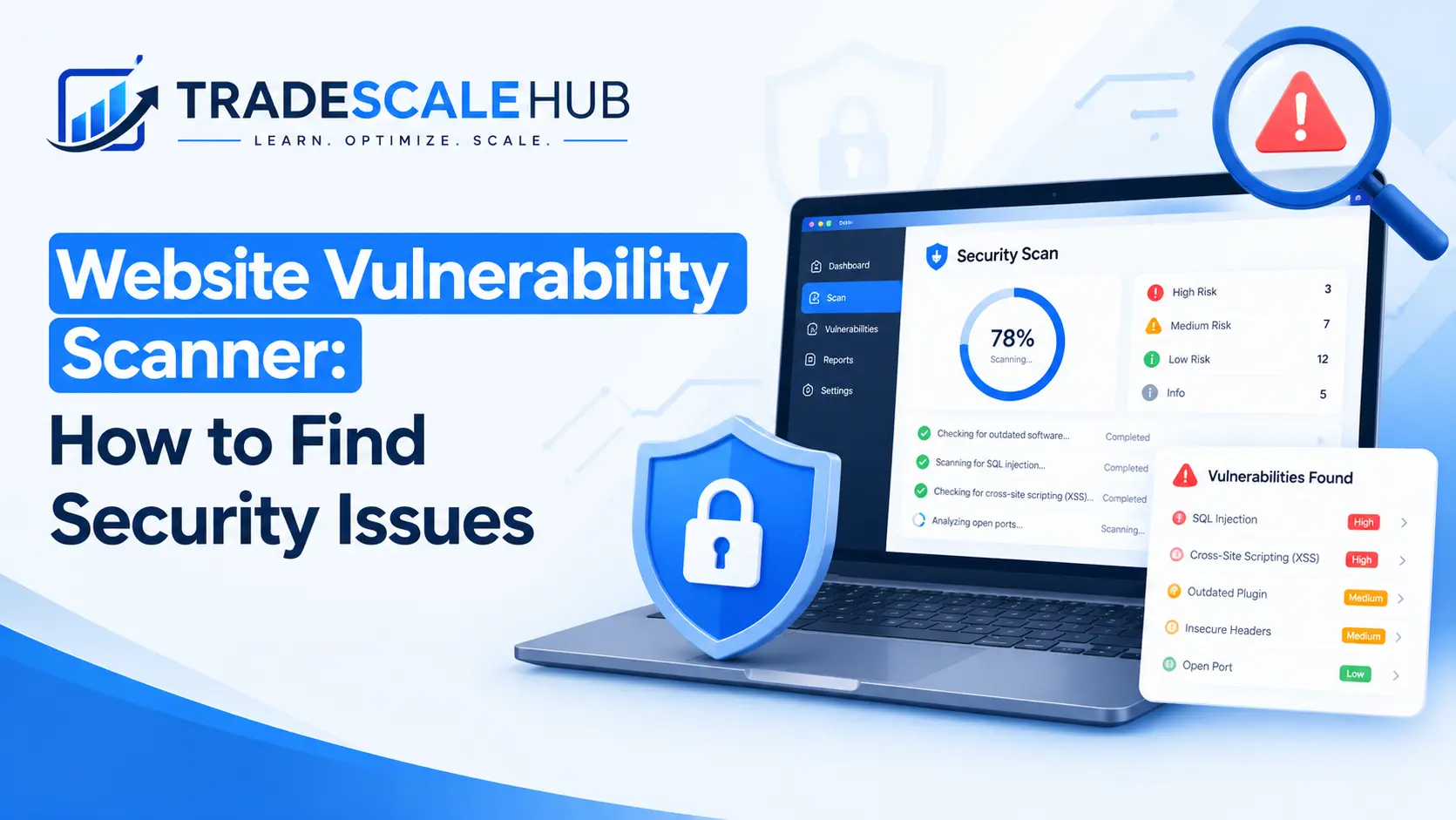
Most website owners only think about security after something breaks. A page redirects to a strange pharmacy site, a client reports a browser warning, or Google flags the domain as unsafe. By then the damage is already visible, and cleanup is expensive. The smarter approach is to look for weaknesses before an attacker does, and the most practical way to do that is with a website vulnerability scanner.
A website vulnerability scanner is an automated tool that examines your website, its software, and its server configuration for known weaknesses. It works much like a building inspector who walks through a property checking locks, wiring, and fire exits. The inspector does not break in. The inspector simply reports what could go wrong so you can fix it first.
In this guide, you will learn how a website vulnerability scanner works, which types exist, what kinds of security issues it can and cannot find, how to run your first scan safely, and how to turn the results into a clear action plan. Whether you manage a single business website or a portfolio of client sites, the process is the same. If you want a broader view of protecting a site, our guide to website security covers the foundations that scanning builds on.
What Is a Website Vulnerability Scanner?
A website vulnerability scanner is a security tool that automatically tests a website for weaknesses that attackers commonly exploit. It sends requests to your pages, forms, and server, then analyzes the responses for signs of problems. Those problems might include outdated software, missing security headers, exposed files, weak encryption settings, or code flaws that allow injection attacks.
The key word is automated. A manual security review by an expert can go deeper, but it takes days and costs far more. A website vulnerability scanner can check hundreds of known issues in minutes, and you can repeat the process every week without extra effort. That speed and repeatability is why scanning forms the backbone of most security routines.
What a Scanner Actually Reports
A typical website vulnerability scanner produces a list of findings. Each finding usually includes the affected page or component, a description of the problem, a severity rating, and recommended fixes. Severity is often labeled critical, high, medium, low, or informational. Many tools also map findings to well-known standards, such as the OWASP Top 10 list of common web application risks.
It is important to understand what the report represents. A finding is a possible weakness, not proof that your site has been hacked. A scanner tells you where doors may be unlocked. It does not tell you whether someone has already walked through them. For signs of an active infection, you need malware detection, which we cover in the WordPress malware guide on IFFARIS.
Why Every Website Needs a Website Vulnerability Scanner
Some owners assume small websites are not worth attacking. In reality, most attacks are automated. Bots scan the internet constantly, looking for outdated plugins, exposed login pages, and known flaws. They do not care whether a site belongs to a large company or a local electrician. They only care whether a weakness exists.
Here is why running a website vulnerability scanner matters for almost every site.
You find problems before attackers do. Attackers use their own scanning tools. If you do not scan your site, you are leaving the discovery process entirely to the people who want to exploit it.
Software changes constantly. New vulnerabilities in themes, plugins, and server software are published every day. A site that was clean last month may be exposed today because a component received a security advisory.
Security affects search visibility. If a site is hacked, Google may show warnings in search results or remove pages entirely. Rankings and trust can fall quickly. Our article on Google Search Console indexing explains how to monitor your pages, and the Security issues report there can alert you to problems Google detects.
Customers expect safe websites. Contact forms, booking tools, and payment pages collect personal information. A weakness in any of them can expose customer data and damage your reputation.
Compliance often requires it. Businesses that handle payments or personal data may be required to run regular scans under industry rules or client contracts.
Using a website vulnerability scanner will not make a website unhackable. Nothing does. What it does is reduce the number of easy opportunities, which is what stops most attacks.
Types of Website Vulnerability Scanner Tools
Not every scanner works the same way. Understanding the main types helps you choose tools that match your needs and avoid false confidence.
Dynamic Scanners (DAST)
Dynamic application security testing tools examine a running website from the outside, the way an attacker would. They crawl pages, submit test inputs to forms, and watch how the application responds. This type of website vulnerability scanner is good at finding issues like cross-site scripting, SQL injection, insecure cookies, and missing security headers. Tools such as OWASP ZAP and Burp Suite belong to this category.
Static Scanners (SAST)
Static application security testing tools analyze source code without running it. They are mainly used by developers during building and review. If you maintain a custom application, a static scanner can catch insecure coding patterns early. For a typical business website built on a content management system, dynamic scanning is usually more relevant.
Software Composition Scanners
These tools check the libraries, plugins, and themes your site relies on against databases of known vulnerabilities. They answer a simple question: are any components on this site known to be vulnerable? For WordPress websites, this type of website vulnerability scanner is especially valuable because most WordPress compromises come from outdated or poorly maintained plugins.
Network and Server Scanners
Network scanners examine the infrastructure beneath your site. They look for open ports, outdated server software, weak encryption protocols, and misconfigured services. Tools such as OpenVAS and Nessus fall into this group. If you control your own server, this layer matters as much as the application itself.
CMS-Specific Scanners
Some scanners are built for a single platform. WPScan, for example, focuses on WordPress and checks core files, plugins, and themes against a dedicated vulnerability database. A CMS-specific website vulnerability scanner often finds platform issues that general tools miss.
Malware Scanners
Malware scanners look for malicious code that has already been placed on your site. They are related to, but different from, a website vulnerability scanner. One checks for weaknesses, and the other checks for infections. A complete security routine uses both. Security plugins and online checkers often combine the two functions, which can blur the difference, so read what each tool actually tests.
Cloud-Based and Local Website Vulnerability Scanner Tools
Cloud-based tools run from the provider’s servers and need no installation. You enter your address, and the service performs the scan. Local tools run on your own computer or server and give you more control over settings. Cloud services are easier for beginners, while local tools suit professionals who want custom scans.
What Security Issues Can a Website Vulnerability Scanner Find?
A good website vulnerability scanner checks for a wide range of issues. Here are the most common categories you will see in reports.
Outdated Software and Plugins
Running old versions of your CMS, plugins, themes, or server software is the most common source of weakness. Scanners compare your versions against known vulnerability lists and flag anything that needs updating. If you manage a WordPress website, our website maintenance checklist shows how to keep updates on a regular schedule.
Injection Flaws
Injection happens when a site passes untrusted input to a database, operating system, or other interpreter without proper handling. SQL injection is the best-known example. A website vulnerability scanner tests forms and URL parameters with crafted inputs to see whether the application reacts in an unsafe way.
Cross-Site Scripting (XSS)
Cross-site scripting lets an attacker inject scripts into pages that other visitors see. Those scripts can steal session data, redirect users, or change what the page displays. Scanners test input fields and reflected parameters to detect where scripts could be inserted.
Security Misconfiguration
Misconfiguration covers a large group of mistakes: default passwords left active, directory listings turned on, debug mode enabled in production, or unnecessary services running. These issues are common and often easy to fix once a scanner points them out.
Missing Security Headers
Security headers tell browsers how to treat your content. Headers such as Content-Security-Policy, X-Frame-Options, Strict-Transport-Security, and X-Content-Type-Options reduce the risk of several attacks. A website vulnerability scanner usually reports which ones are missing or weak.
Weak SSL and TLS Configuration
Encryption protects data traveling between visitors and your server. Scanners check certificate validity, expiration dates, supported protocol versions, and cipher strength. Old protocols and weak ciphers can be exploited, so modern configurations are important.
Exposed Files and Directories
Backup archives, configuration files, log files, and administration panels sometimes end up publicly accessible. A scanner probes common file names and locations to see whether anything sensitive is visible to the public.
Authentication and Session Problems
Weak login systems, missing rate limits, insecure cookies, and poor session handling can allow account takeovers. Scanners test login pages and cookie attributes for common problems, though deep authentication testing usually needs authenticated scans.
Broken Access Control
This issue appears when users can reach pages or actions they should not be allowed to use. Automated tools find only some of these flaws, because understanding who should access what often requires human judgment.
What a Website Vulnerability Scanner Cannot Do
Scanners are powerful, but they have limits. Knowing those limits prevents a dangerous false sense of security.
First, a website vulnerability scanner can only find what it is designed to detect. Brand new vulnerabilities, sometimes called zero-days, will not appear until databases are updated.
Second, scanners struggle with business logic. If a checkout process allows someone to change a price in a hidden field, an automated tool may not understand that the behavior is wrong.
Third, results can include false positives and false negatives. A false positive reports a problem that does not exist. A false negative misses a real one. Both are normal, and both are why findings should be reviewed rather than accepted blindly.
Fourth, unauthenticated scans see only what a public visitor sees. Pages behind a login may remain untested unless you configure the scanner with credentials.
Finally, a scan is a snapshot. It reflects your site at one moment. After new plugins are installed or settings change, new weaknesses can appear. That is why regular scanning matters more than a single test.
How to Choose the Right Website Vulnerability Scanner
With so many options, selection can feel confusing. Focus on the factors that affect your situation.
Match the tool to your platform. If your site runs on WordPress, choose a scanner that understands plugins and themes. If it is a custom application, a dynamic scanner with strong crawling is more useful.
Consider your skill level. Beginners benefit from cloud scanners with clear reports and plain-language fixes. Experienced users may prefer configurable tools that allow custom rules.
Check coverage and update frequency. A website vulnerability scanner is only as good as its vulnerability database. Look for tools that update regularly and cover current threats.
Look at reporting quality. Clear severity ratings, evidence, and remediation advice save time. A report that lists hundreds of vague warnings is less useful than one that explains exactly what to fix.
Review scan impact. Aggressive scans can slow a site or trigger security alerts. Some tools let you adjust intensity, which is important on shared hosting.
Think about scheduling and alerts. Automatic weekly or monthly scans with email alerts turn scanning from a task into a system.
Compare cost against need. Free tools such as OWASP ZAP are capable and widely respected. Paid platforms add automation, dashboards, support, and compliance reports. A small business website may do well with free tools, while an agency managing many sites may value a paid dashboard.
Popular Website Vulnerability Scanner Options
Here is a quick overview of well-known tools, grouped by what they do best. Features and pricing change, so check each provider’s current offering before deciding.
| Tool | Best For | Type |
|---|---|---|
| OWASP ZAP | Free dynamic testing of web applications | Dynamic scanner |
| Burp Suite | Deep manual and automated testing by professionals | Dynamic scanner |
| Nikto | Quick checks of web servers for known issues | Server scanner |
| OpenVAS (Greenbone) | Broad network and infrastructure scanning | Network scanner |
| Nessus | Enterprise vulnerability management | Network scanner |
| WPScan | WordPress core, plugin, and theme checks | CMS-specific |
| Sucuri SiteCheck | Fast external checks for malware and blacklist status | Malware and reputation |
| Wordfence and Patchstack | WordPress vulnerability and firewall protection | Plugin-based |
No single tool covers everything. A sensible stack for a small business might combine a CMS-specific scanner, a free dynamic scanner for periodic deeper checks, and a malware monitor. Our technical SEO overview explains how these maintenance layers connect with site health and search performance.
How to Run Your First Website Vulnerability Scanner Scan
Ready to try it? Follow this step-by-step process to run a safe and useful scan.
Step 1: Get Permission
Only scan websites you own or have written permission to test. Scanning someone else’s site without authorization can be illegal and may violate hosting terms. If you manage client sites, get written approval and agree on scan windows first.
Step 2: Back Up Your Website
Although scans are designed to be safe, some tests submit data to forms or trigger unusual behavior. A full backup of files and the database gives you a safe fallback. Backups are also a core part of any maintenance routine.
Step 3: Use a Staging Copy When Possible
If your hosting offers a staging environment, run the first scan there. Testing a copy keeps your live site free from risk, such as extra form submissions or slowdowns. This matters more for ecommerce and booking sites.
Step 4: Define the Scope
Decide which addresses the scan should cover. Include your main domain, important subdomains, and any applications such as booking portals. Exclude third-party services you do not control, because you may not have permission to scan them.
Step 5: Choose Scan Settings
Start with a standard profile instead of the most aggressive option. If the website vulnerability scanner supports authenticated scanning, add a low-privilege test account so it can reach pages behind the login. Avoid using an administrator account for testing.
Step 6: Run the Scan and Wait
Scan time depends on site size and settings. A small site may finish in minutes, while a large one can take hours. During the scan, watch for slowdowns or errors, and stop the test if the site becomes unstable.
Step 7: Export the Report
Save the results in a format you can share, such as PDF or CSV. Record the date, tool version, and settings. This record helps you compare future scans and prove that fixes worked.
How to Read Website Vulnerability Scanner Results
Raw reports can feel overwhelming, especially the first time. The following approach keeps analysis manageable.
Start With Severity
Sort findings from critical to informational. Critical and high findings usually involve flaws that could allow takeover, data theft, or remote code execution. Address these first.
Verify Before Fixing
Confirm that each serious finding is real. Check the evidence the website vulnerability scanner provides, such as the affected URL, request, and response. If something looks wrong, test it manually or consult documentation. Never assume that every flagged item is accurate.
Group Findings by Cause
Many findings share a root cause. Ten missing header warnings may be solved with one server configuration change. Fifty outdated component alerts may come from three plugins. Grouping by cause turns a long list into a short plan.
Consider Business Impact
A medium finding on a page that handles customer payments may deserve more urgency than a high finding on an unused test page. Combine the technical rating with the importance of the affected asset.
Ignore Noise Carefully
Informational findings are often not security problems. Document why you are accepting any risk, so future reviewers know it was a decision rather than an oversight.
A Practical Plan for Fixing Issues Your Website Vulnerability Scanner Finds
After reviewing results, work through fixes in a sensible order.
- Update everything. Patch your CMS core, plugins, themes, and server software. This single step resolves the largest share of findings on most sites.
- Remove what you do not use. Delete inactive plugins and themes, old backups, and test files. Unused code is unmonitored risk.
- Fix injection and XSS flaws. If your scanner reports code-level problems, involve a developer. Use parameterized queries and proper output encoding.
- Harden configuration. Add security headers, disable directory listings, turn off debug output, and restrict access to sensitive files.
- Strengthen authentication. Enforce strong passwords, enable two-factor authentication, limit login attempts, and review user accounts.
- Improve encryption. Renew certificates, disable outdated protocols, and force HTTPS across the website.
- Add monitoring and a firewall. A web application firewall can block many automated attacks while you work through deeper fixes.
- Rescan to confirm. Run the website vulnerability scanner again after changes. A fix is not complete until the finding disappears.
Choosing the right plugins matters, too. If you use WordPress, review the guide on WordPress plugins to learn how to evaluate quality, update history, and support before installing anything new.
Website Vulnerability Scanner Best Practices for Small Businesses
Local service companies, such as electricians, plumbers, and appliance repair shops, often rely on a single website for leads. A hacked site means missed calls and lost trust. These habits keep security manageable without a large budget.
Scan on a schedule. Run a website vulnerability scanner at least monthly, and more often if you update the site frequently. Run an extra scan after major changes, such as installing a new plugin or redesigning pages.
Scan after updates. Updates fix old weaknesses but can introduce new misconfigurations. A quick scan afterward confirms everything is still healthy.
Keep a security log. Record each scan date, findings, and fixes. Over time, this log shows trends and proves diligence.
Limit user accounts. Give each person only the access they need. Remove accounts for former employees and contractors immediately.
Back up regularly and test restores. A backup you have never restored is only a hope. Store copies away from the web server.
Choose reliable hosting. Good hosts provide server-level protection, isolated accounts, and fast patching. Cheap hosting can undermine the best scanning routine.
Protect your forms. Contact and booking forms are frequent targets. Add spam protection, validate inputs, and keep form plugins current.
If your site is built on WordPress, the principles in our guide to WordPress websites and the website setup tutorial include notes on security and backups that complement a scanning routine.
Website Vulnerability Scanner vs Penetration Testing
People often confuse scanning with penetration testing, but the two serve different purposes.
A website vulnerability scanner is automated. It checks for known weaknesses quickly and cheaply, and it can run often. It tells you what might be wrong.
A penetration test is performed by a skilled human who attempts to exploit weaknesses, chain them together, and demonstrate real impact. It is slower and more expensive, but it finds complex logic flaws that automated tools miss. It tells you what an attacker could actually achieve.
For most small business websites, regular scanning is the right starting point. Add a penetration test when you handle sensitive data, process payments directly, build custom applications, or face compliance requirements. The two methods work best together: scanning provides continuous coverage, while testing provides depth.
How Security Scanning Supports SEO and Performance
Security and search optimization are closely linked. A compromised site can display spam content, inject hidden links, or redirect visitors. Search engines may respond with warnings or removal from results. Recovery can take weeks, and lost rankings are not always regained quickly.
Using a website vulnerability scanner also supports technical health. Many security improvements, such as forcing HTTPS, removing bloated plugins, and cleaning old files, also help speed and stability. If you want to see how security fits with overall site quality, our SEO audit checklist includes technical checks that pair well with a vulnerability scan. You can also review Core Web Vitals and learn how to improve website speed, because lighter and cleaner sites are easier to scan, maintain, and protect.
For a wider look at what else to verify, the technical SEO checklist on IFFARIS lists many items worth reviewing alongside security. Mistakes in basic setup also cause trouble, so reviewing common SEO mistakes can help you avoid problems that attract unwanted attention.
Common Mistakes When Using a Website Vulnerability Scanner
Even good tools produce poor outcomes when used badly. Watch out for these frequent errors.
Scanning once and forgetting. Security is ongoing. A single scan gives a temporary picture, not lasting protection.
Trusting a clean report completely. A report with no findings means the website vulnerability scanner did not detect known issues. It does not guarantee safety.
Ignoring low and medium findings forever. Small issues can combine into larger ones. Review them regularly even if they are not urgent.
Running aggressive scans on production without care. Heavy scanning can slow a website or trip your host’s protections. Use staging or lighter profiles when unsure.
Fixing symptoms instead of causes. Hiding a version number does not repair an outdated plugin. Fix the underlying weakness.
Skipping authenticated scans. Many serious flaws live behind logins, such as admin areas and customer portals. Without credentials, a scanner cannot test them.
Scanning without permission. Authorization matters legally and ethically. Always confirm you have approval, especially for client work.
Failing to rescan. If you do not verify fixes, you cannot be sure they worked. Always rerun the website vulnerability scanner after changes.
Using too many overlapping tools. Several scanners can produce duplicate and conflicting reports. Choose a small stack and learn it well.
Building a Repeatable Security Scanning Routine
The real value of a website vulnerability scanner appears when scanning becomes habit. Use this simple routine.
Weekly: Check automated alerts from your security plugin or monitoring service. Review the Security issues area in Search Console. Confirm backups completed.
Monthly: Run a full website vulnerability scanner scan, review results, and apply fixes. Update plugins, themes, and core software. Audit user accounts.
Quarterly: Run an authenticated scan, review server configuration, test backup restoration, and examine security headers and certificates.
Yearly: Consider a professional penetration test for important sites. Review policies, hosting, and tools to confirm they still match your needs.
After any major change: Scan again. New plugins, redesigns, migrations, and integrations can all create new exposure.
This rhythm takes little time once established, and it catches problems while they are still small. Agencies that manage many sites often centralize the process in a dashboard so every client receives the same level of care. If you handle local business websites, our local SEO audit guide shows how to combine technical checks with visibility checks in one review.
Frequently Asked Questions
What is a website vulnerability scanner?
A website vulnerability scanner is an automated tool that tests a website, its software, and its server for known security weaknesses. It reports findings with severity ratings and suggested fixes so you can repair problems before attackers exploit them.
Is a website vulnerability scanner the same as a malware scanner?
No. A vulnerability scanner looks for weaknesses that could be exploited, while a malware scanner looks for malicious code already present on your site. Both are valuable, and many security routines use them together.
How often should I run a website vulnerability scanner?
Most small business sites should scan at least monthly, plus after major updates or design changes. High-risk sites, such as ecommerce stores, benefit from weekly or continuous scanning.
Are free scanners good enough?
Free tools such as OWASP ZAP are capable and trusted by professionals. They may require more technical skill and offer fewer automation features than paid platforms. For many small sites, a free scanner combined with a security plugin is a solid start.
Can a scan harm my website?
Most scans are safe, but aggressive tests can slow a site or submit extra data through forms. Back up your site, avoid peak hours, and consider scanning a staging copy first.
Do I need permission to scan a website?
Yes. Only scan sites you own or have written authorization to test. Unauthorized scanning can break laws and hosting policies.
Will a website vulnerability scanner find every problem?
No. Scanners find known and detectable issues but can miss business logic flaws, new vulnerabilities, and complex attack chains. That is why they should be combined with updates, monitoring, good hosting, and occasional manual testing.
What should I do first after a scan finds issues?
Start with critical and high findings. Update outdated software, remove unused components, and fix exposed files or weak configuration. Then rescan to confirm each issue is resolved.
Does website security affect SEO?
Yes. Hacked sites can lose rankings, show browser warnings, and be flagged by search engines. Keeping security strong protects both visitors and visibility.
Final Thoughts
Finding security issues does not require a large budget or advanced skills. It requires a habit of looking, a willingness to fix what you find, and a routine that keeps the process going. A website vulnerability scanner supplies the looking part quickly and cheaply, and it turns an invisible risk into a clear list of tasks.
Start small. Choose a tool that fits your platform, get permission, back up your website, and run a standard scan. Review the results by severity, fix the biggest problems first, and rescan to confirm. Then schedule the next scan before you forget.
Over time, regular scanning will make your website harder to attack, easier to maintain, and more trustworthy to customers and search engines. Treat the website vulnerability scanner as a standing part of your maintenance, alongside updates and backups, and you will catch most weaknesses long before anyone else does.
